 COME
COMECompare the listed and installed COME versions
Compare actual version identifiers when deciding whether to update COME. A listing version and the copy installed on your phone may refer to different releases.
Find both values
Read the dated version on the download page, then look for the installed version in your device's app information or an available app detail screen. Write each value with its source. The words “Latest Version” in Settings are a status description, not a substitute for an identifier.
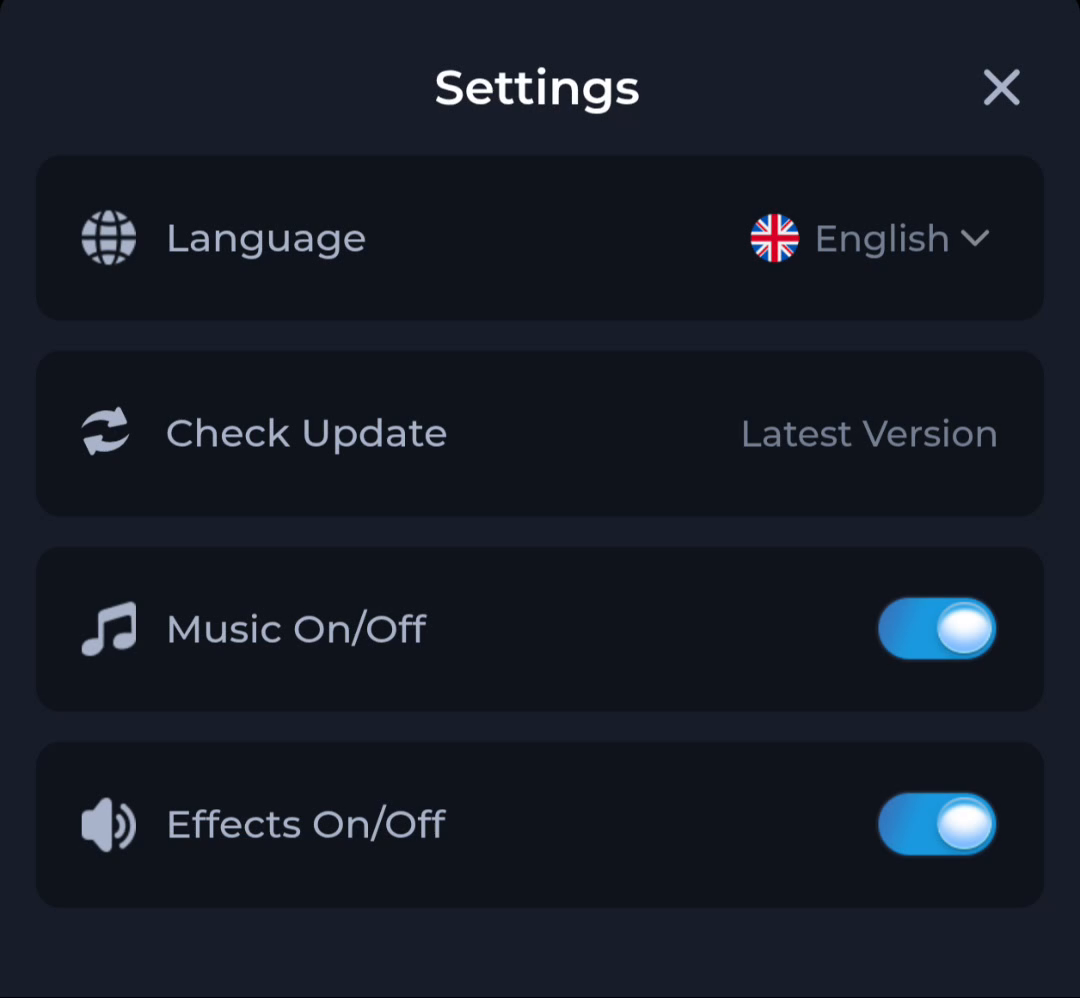
Check the offered update
If the destination presents another version, inspect its current details before downloading. A difference can mean the listing changed or that you are comparing different records. Do not decide which file is genuine simply by choosing the highest-looking number.
Preserve working access
For an existing installation, retain access to the account and recovery method while checking. An update prompt should be considered separately from a login problem. Do not uninstall the current app merely because one page and one screen display different wording.
A useful next step
Use the current destination and Android's installation checks to decide whether an update can proceed.
Related: COME APK: release date, check date and download date