 COME
COMEResolve conflicting COME update information
When a web listing and COME Settings appear to disagree, compare the exact fields and when they were checked before acting.
Collect comparable details
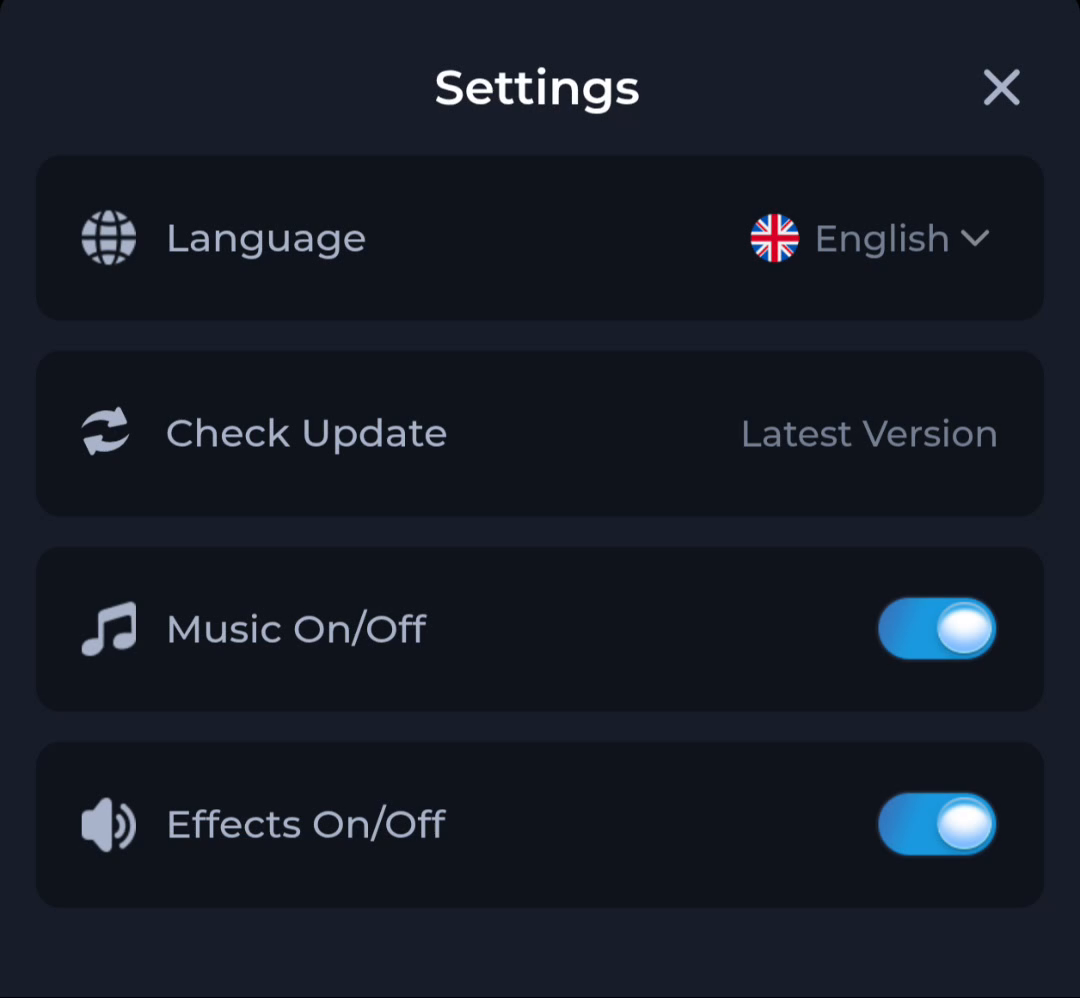
Record the listed version, the installed version if visible and the exact Settings message. “Check Update” names an action; “Latest Version” describes a status. Neither phrase by itself tells you a release date or provides a downloadable file.
Check one source at a time
Refresh the current app-entry page once, then inspect its file details. Return to the app's current update route separately. Do not mix an old screenshot, a forwarded file and a current listing into one assumed release record.
Pause on identity differences
If an installer presents an unexpected app identity or blocks the update, retain the existing app and stop. Explain the conflicting values through the help route displayed by the service. Do not seek a modified package or force a downgrade to eliminate the disagreement.
A useful next step
Proceed only after you can describe which version is installed and which file is being offered.
Related: Compare the listed and installed COME versions